Playback timing
Set BPM and beats for predictable measure timing
The same timing values appear in three places for different jobs: completing import, editing preset defaults, and overriding one selected measure.
The short answer
On 3/3 Playback Setup, enter the Preset title, Default tempo (BPM) (30–260), and Beats per measure (1–64). These fields open blank for a new manual import and must be entered explicitly; completion also requires at least one playable measure. Once the values are valid, Playback time per measure shows how long one measure lasts at 1.0x. After import, Edit opens Measure Edit: rename the preset with the edit button beside its title, and change score-wide Default tempo (BPM) and Beats per measure under Score default playback settings. For one measure, go to Crop Edit, select it, open the detail panel and Timing tab, then set Selected BPM or Selected beats. The selected values take precedence only for that measure.
Seconds per measure calculator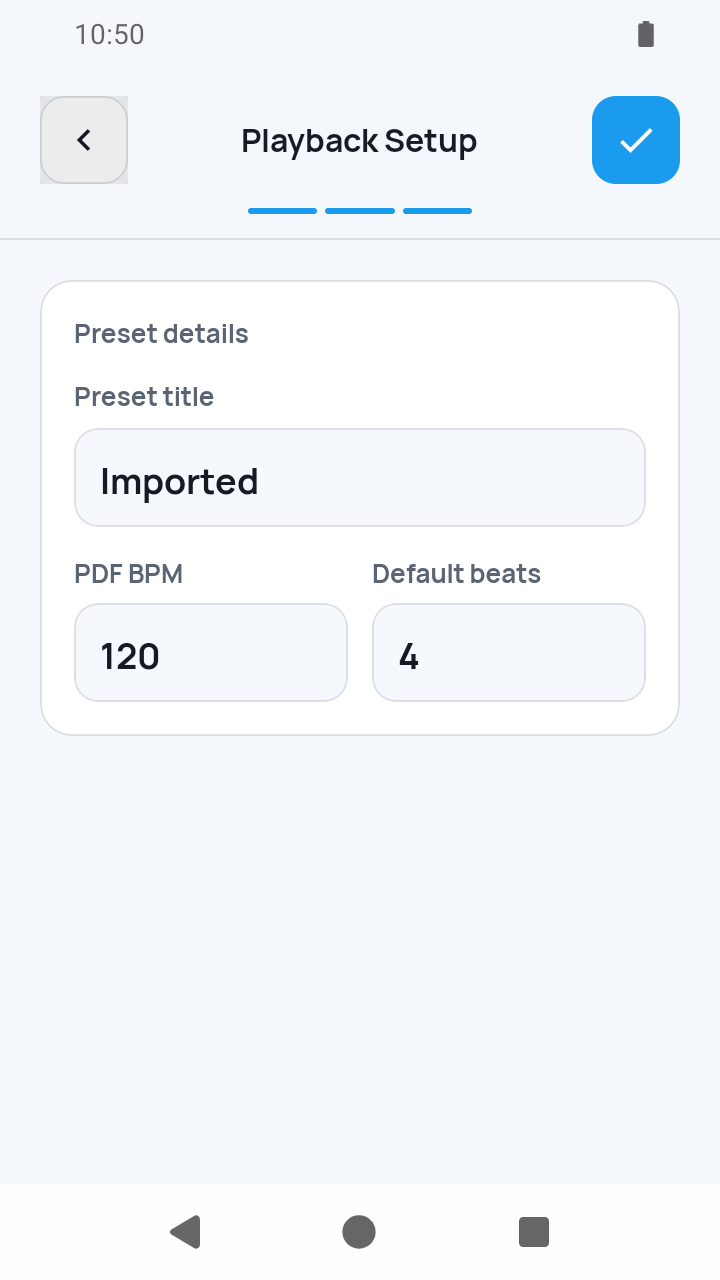 Open full-size image
How it works
Complete 3/3 Playback Setup
During import, give the preset a nonblank title and enter integer Default tempo (BPM) and Beats per measure values. Complete also requires at least one playable measure from the earlier setup steps.
Edit the name and preset-wide timing
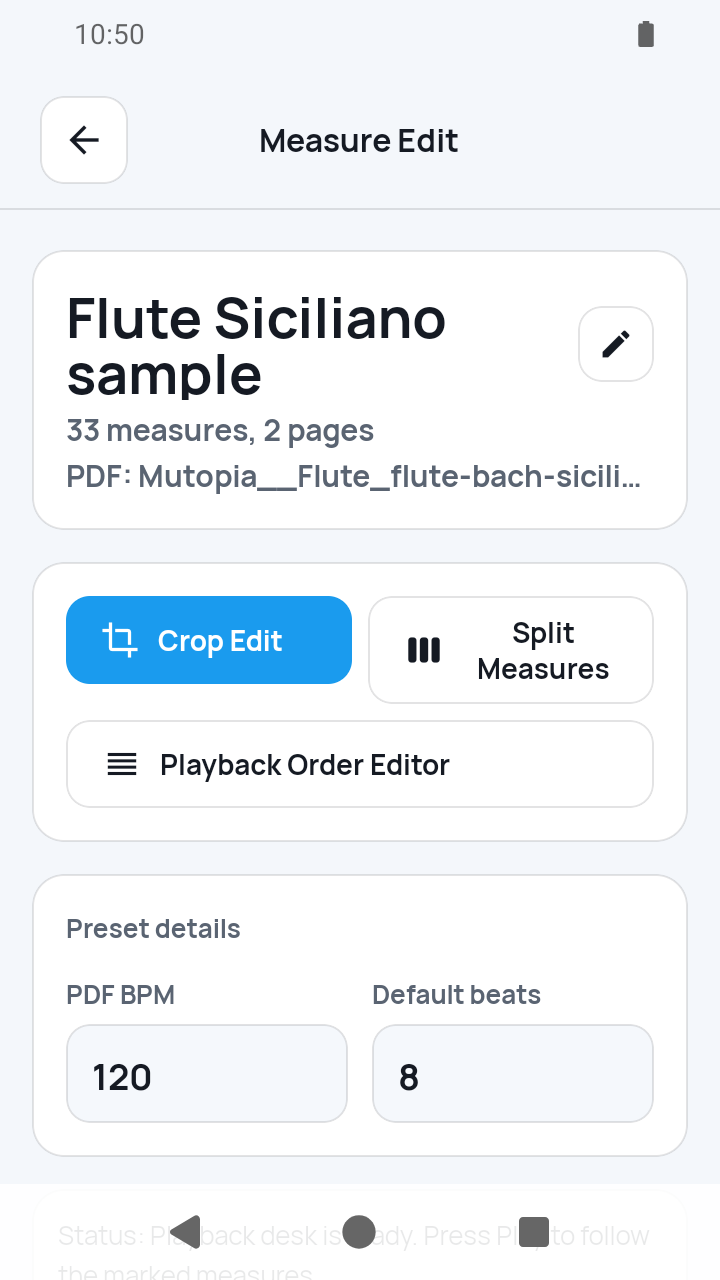
After setup, open the score actions and tap Edit. In Measure Edit, the button beside the title renames the preset; Score default playback settings changes the Default tempo (BPM) and Beats per measure used across it, and Playback time per measure shows the result.
 Open full-size image
Override one measure in Crop Edit
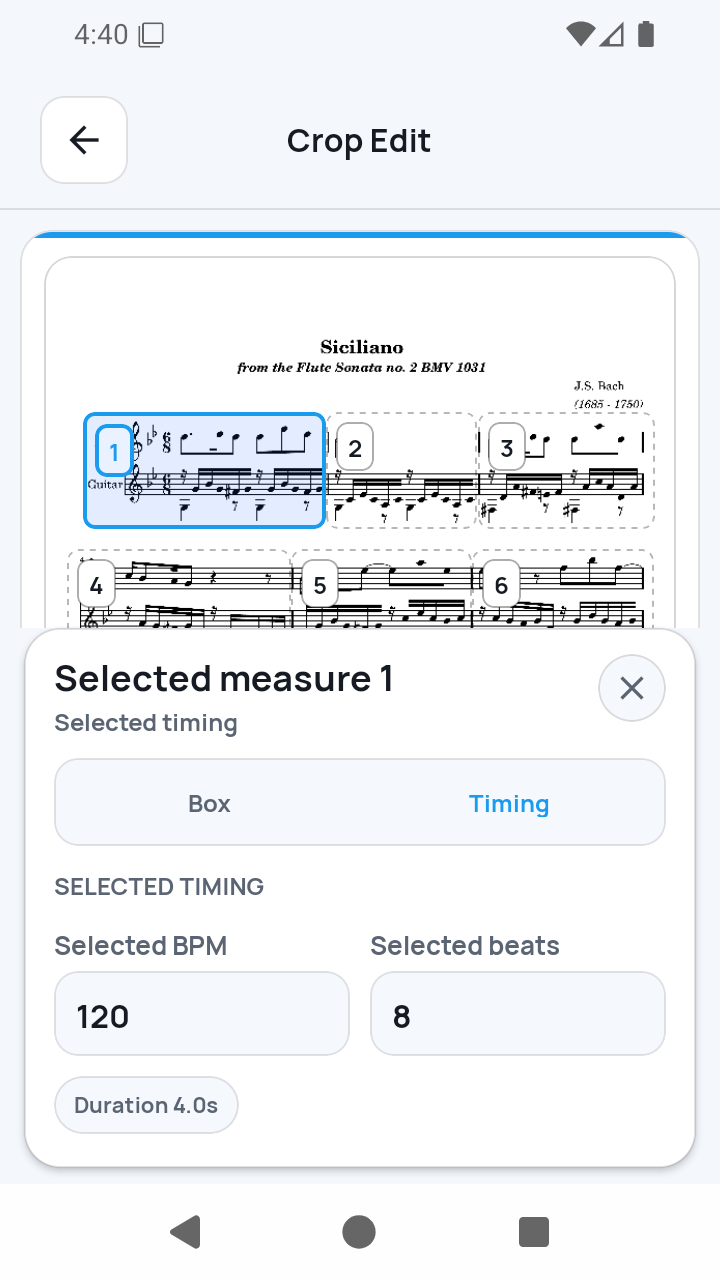
From Measure Edit, open Crop Edit, select a numbered measure, expand its detail panel, and switch to Timing. Enter Selected BPM or Selected beats only when that measure needs a different duration.
 Open full-size image
Test the timed advance
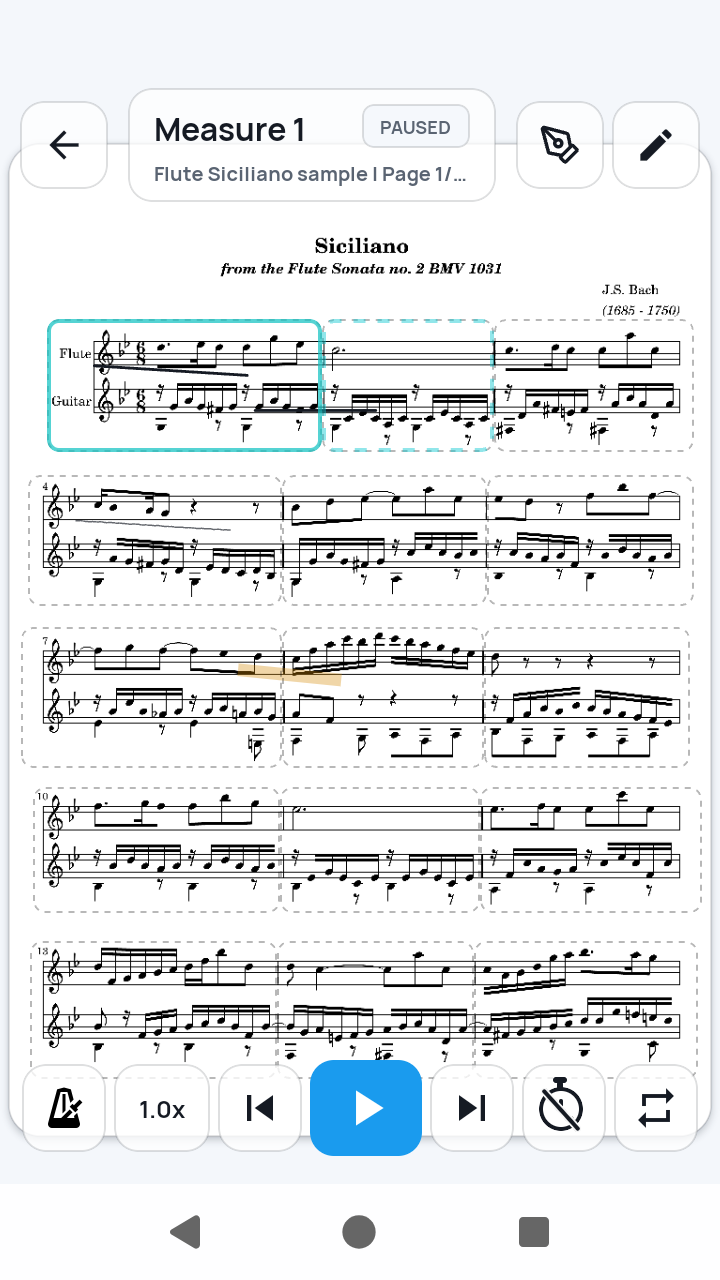
At 1× speed, duration in seconds is beats × 60 ÷ BPM. Watch the current and next cues in practice; playback speed then scales that duration without rewriting the stored preset values.
 Open full-size image
What to know
Defaults and selected timing have different scope
Default tempo (BPM) and Beats per measure are the preset baseline; the 1.2.5 and 1.6.2 screens label the same fields PDF BPM and Default beats under Preset details. Selected BPM and Selected beats take precedence for the chosen measure; other measures keep their existing timing.
Beats is a timing count
It helps calculate when SheetCue advances. It is not automatic time-signature recognition or a notation-aware meter setting.
Current limits
- Tempo and meter are not read from notation or audio.
- Rubato, fermatas, pickups, and expressive timing require manual values or approximation.
- Version 1.8.1 accepts 30–260 BPM and 1–64 beats.
Related guides
Turn your score into a measure-by-measure practice flow.
SheetCue is free to download on iOS, iPadOS, and Android. Start with a 14-day SheetCue Plus free trial if eligible, as shown in the App Store or Google Play.