PDF score practice
How to practice a PDF score measure by measure
After the access notice and system file picker, a fresh PDF import opens three required setup screens. Complete all three before choosing Measure view or Full page.
The short answer
In My Scores, tap Add score, choose PDF file, confirm the Import a PDF notice, and select one PDF through the system picker. Then complete 1/3 Split Measures, 2/3 Order Setup, and 3/3 Playback Setup. Enter the Preset title, Default tempo (BPM), and Beats per measure, tap Complete, dismiss the backup guidance if it appears, and open the score from My Scores to choose a practice layout.
 Open full-size image
How it works
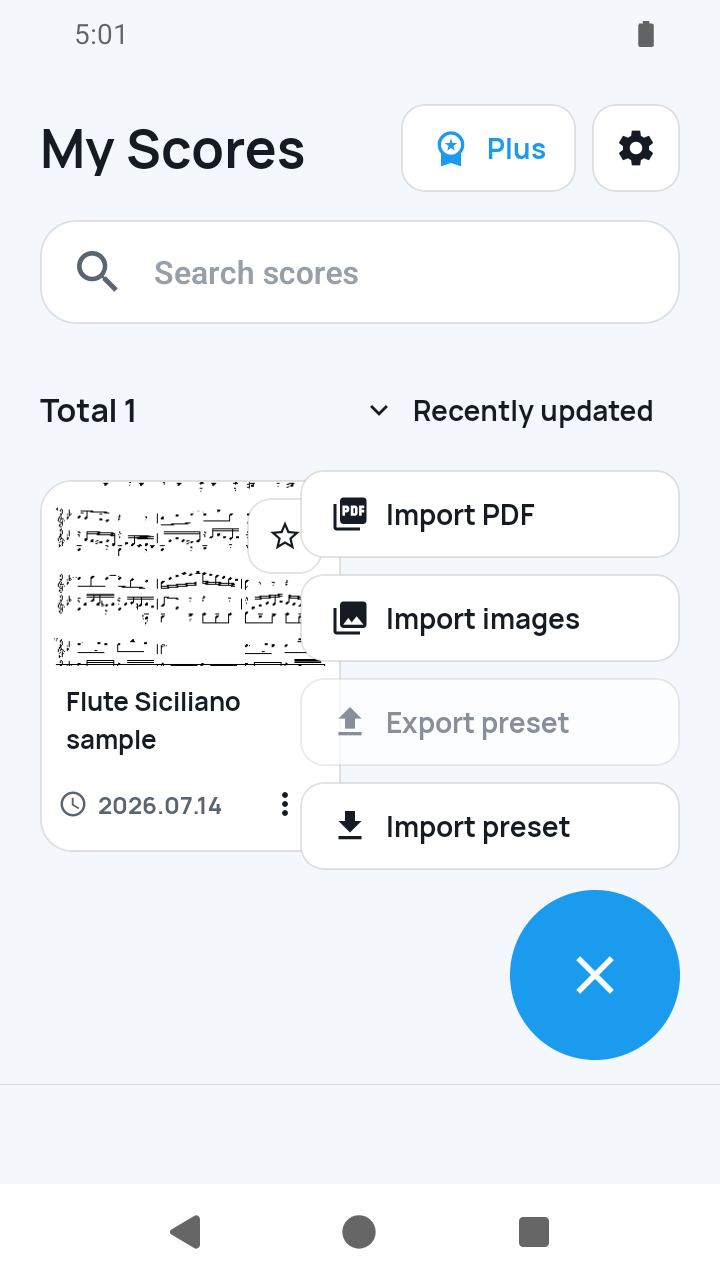
Choose Add score > PDF file
In My Scores, tap Add score and choose PDF file.
 Open full-size image
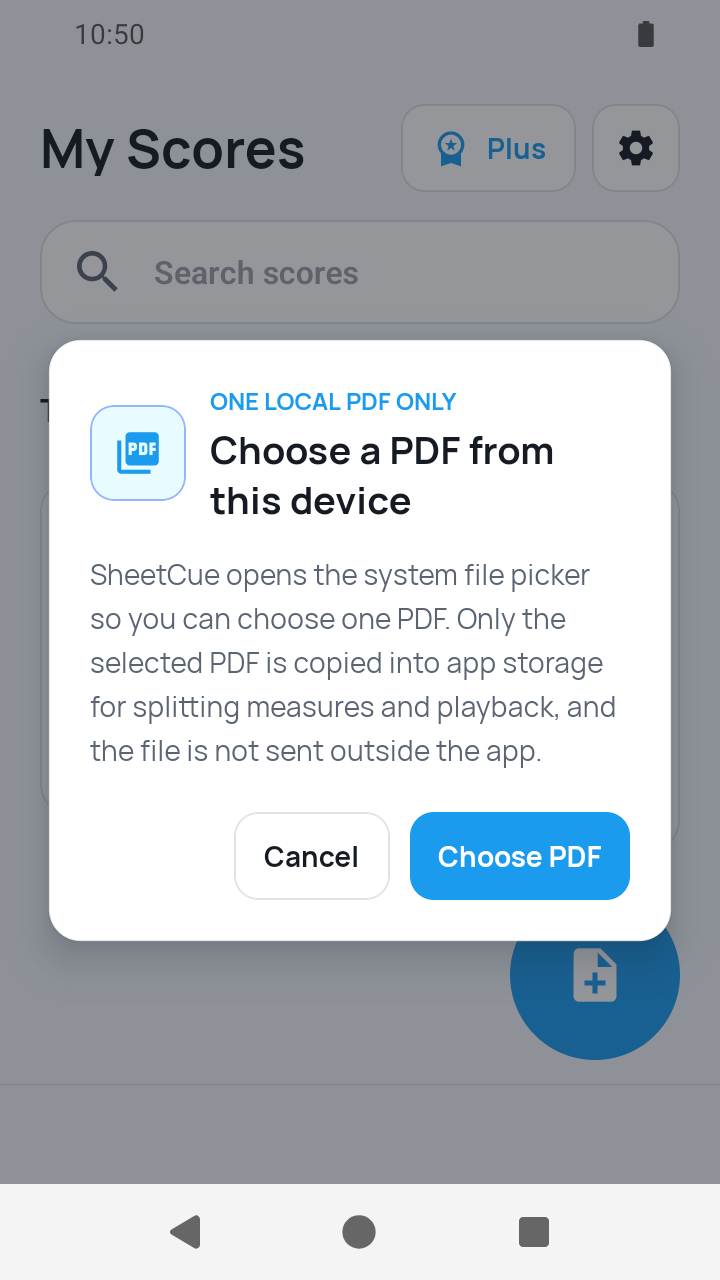
Confirm access and choose one PDF
Read the Import a PDF notice, tap Choose PDF to continue to the system picker, and select one PDF available there. SheetCue copies the selected PDF into its app library and renders its pages.
 Open full-size image
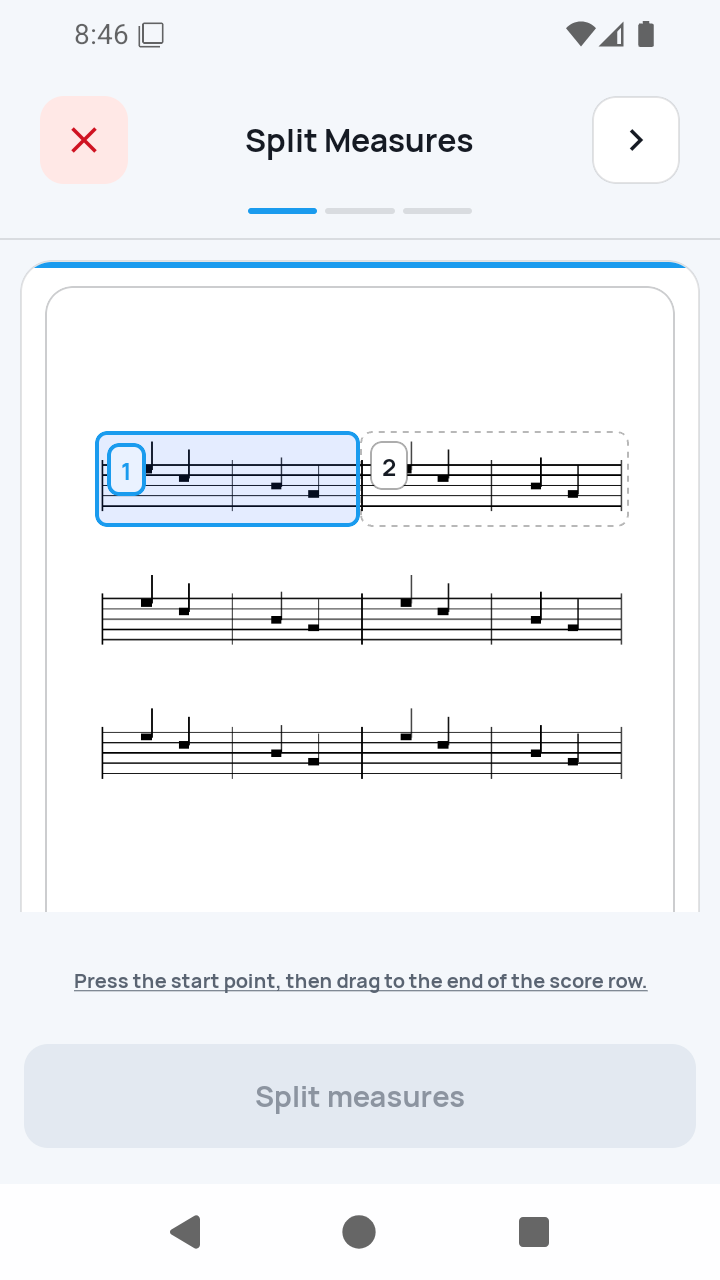
1/3 — Split Measures
Draw across a printed staff row, add or move its vertical measure boundaries, and apply the row. Repeat where needed. The Next button is available only after at least one playable measure exists.
 Open full-size image
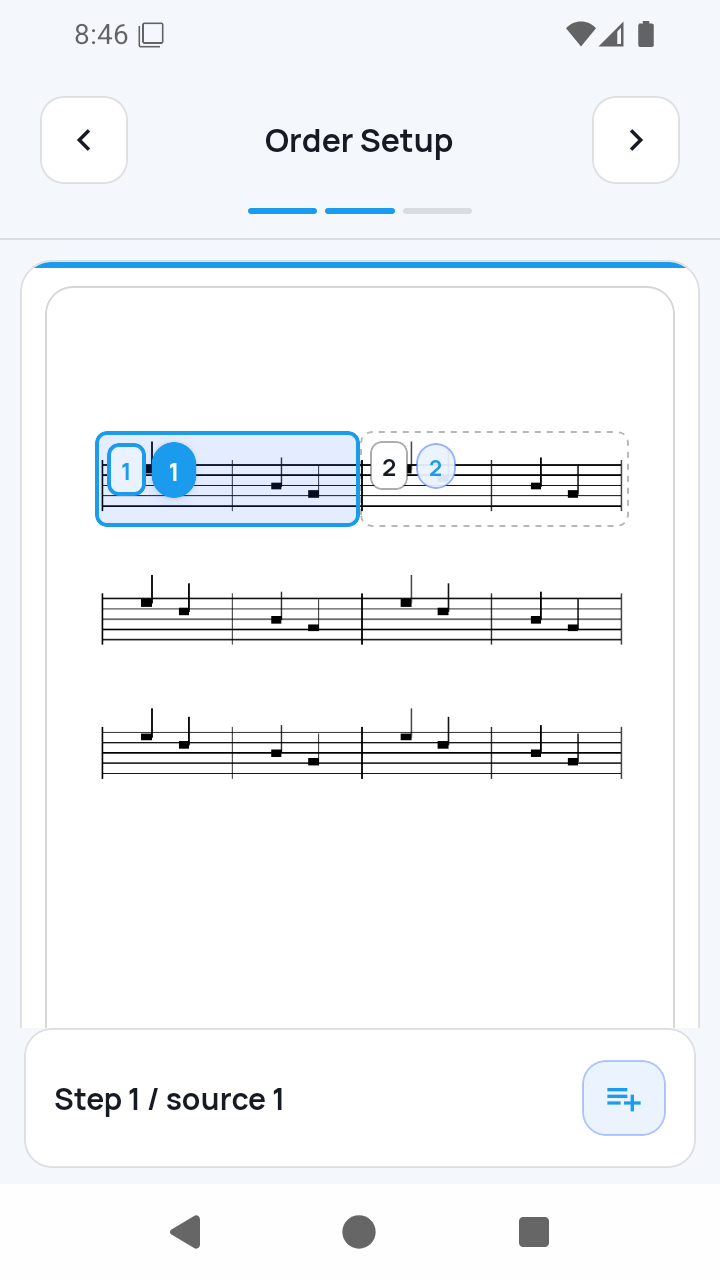
2/3 — Order Setup
Review the numbered route created from the saved source measures. To add a return or repeat, select an existing step, tap the numbered Insert after button—for example, Insert after 1—choose the source measures, and confirm. A source measure can appear at most four times in the saved route.
 Open full-size image
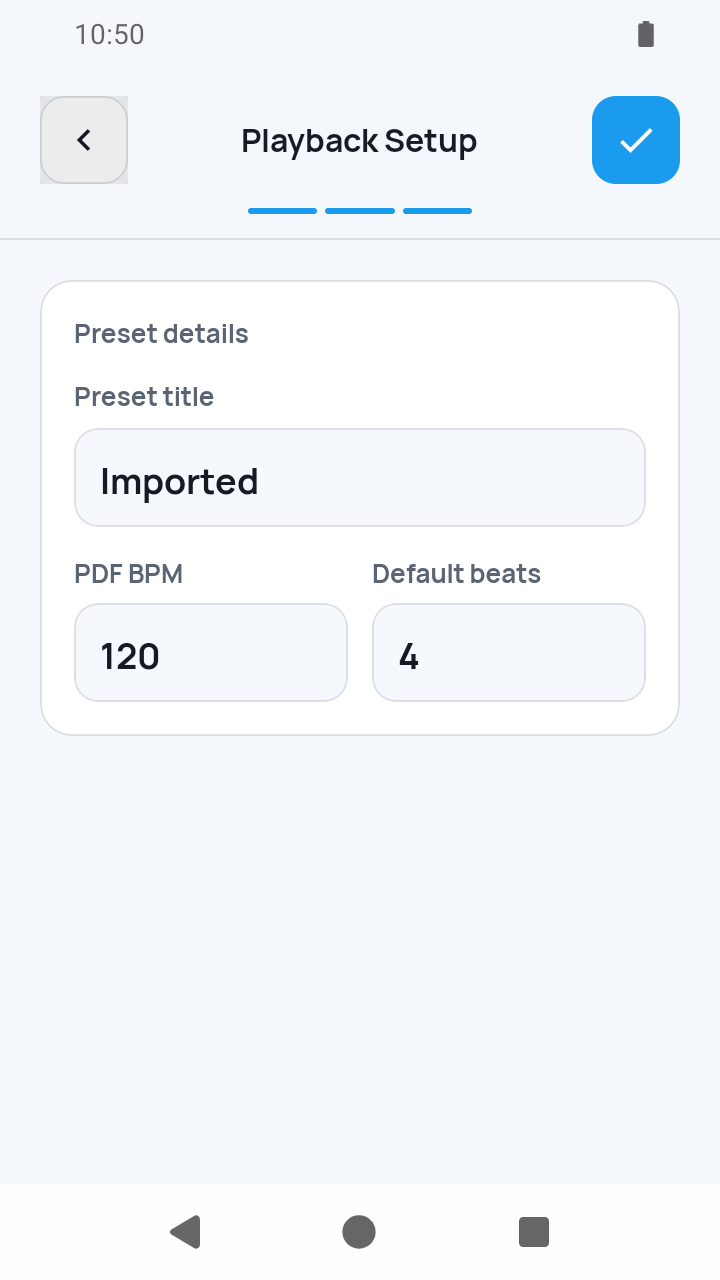
3/3 — Playback Setup and complete
Enter a Preset title, Default tempo (BPM), and Beats per measure. Version 1.8.1 accepts 30–260 BPM and 1–64 beats, and Playback time per measure shows how long each measure stays on screen. Tap Complete only after all required values are valid; this is the action that completes import setup.
 Open full-size image
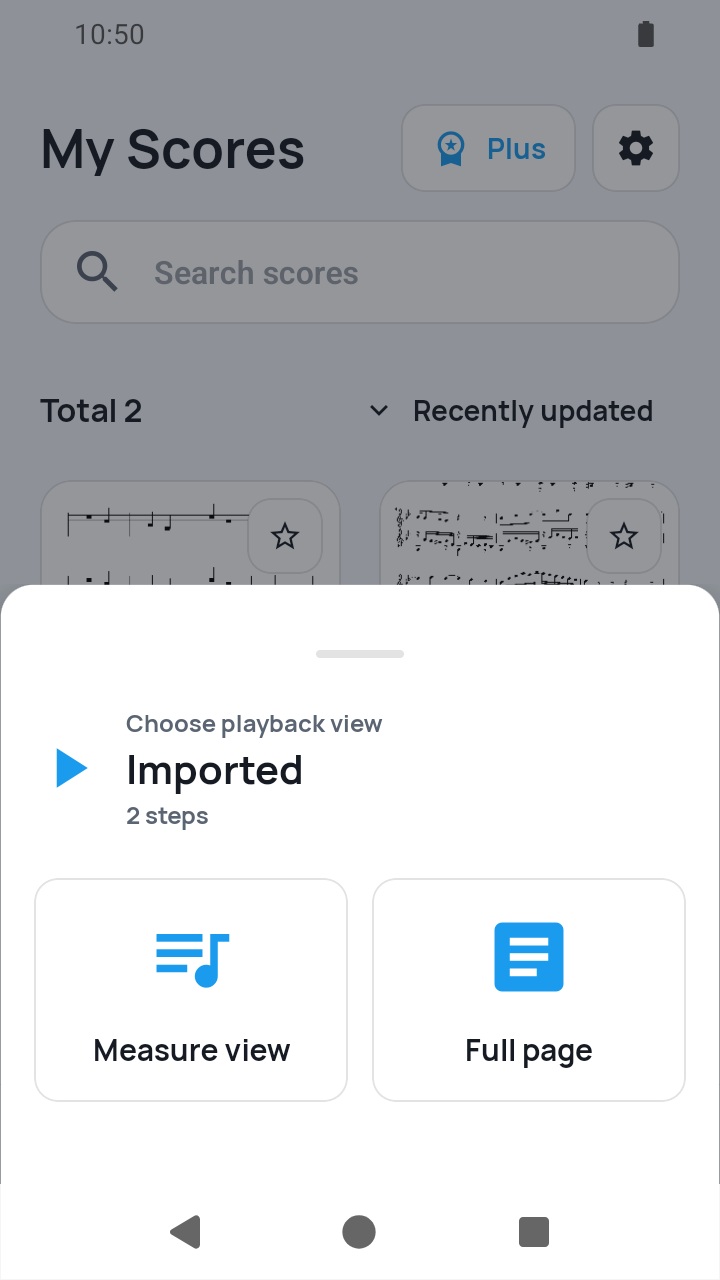
Return to My Scores and choose a view
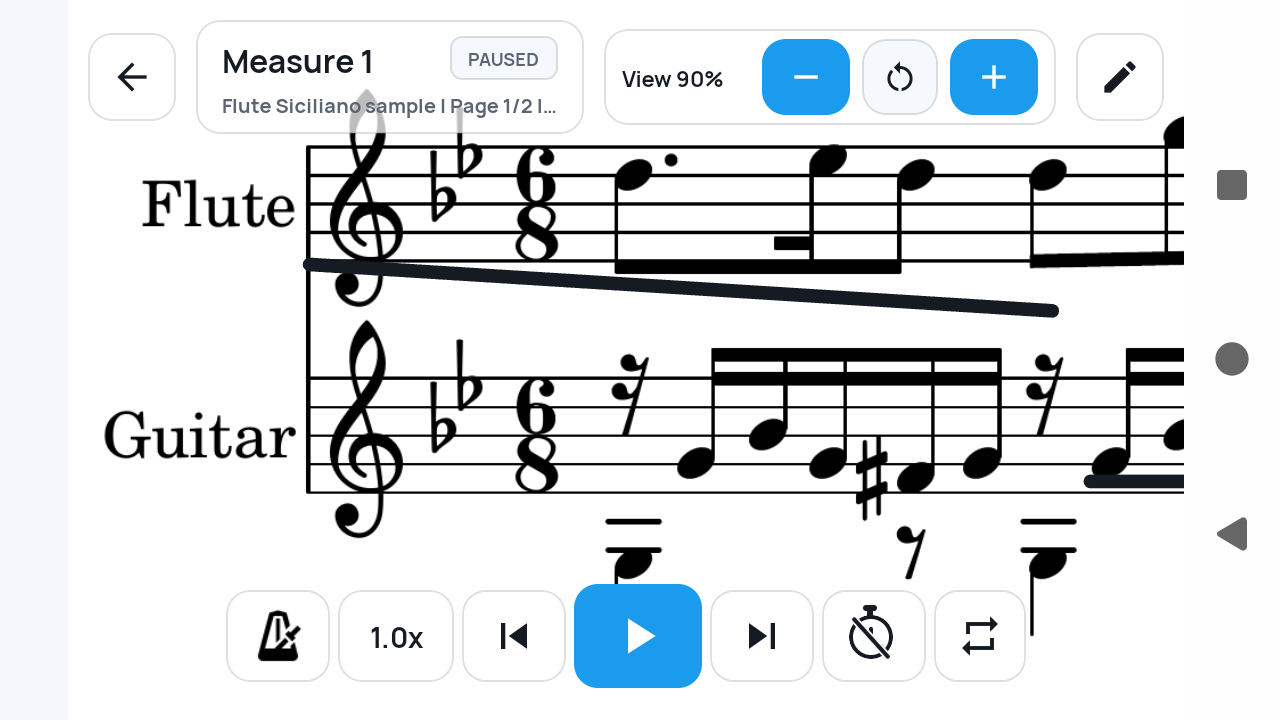
A backup guidance dialog can appear after completion. Continue to My Scores, tap the new score, and choose Measure view or Full page. The saved timing drives advancement; A-B loop, metronome, count-in, and speed controls are available during practice.
 Open full-size image
What to know
Selecting a PDF does not complete the import
The three blue progress segments are the required setup checklist. Cancelling before any measure is applied deletes the empty draft. After at least one measure is applied, cancelling keeps the preset in My Scores with Playback setup needed until 3/3 is completed.
Each step unlocks the next
Apply at least one playable measure to continue. Complete activates only when a playable measure, Preset title, Default tempo (BPM), and Beats per measure are valid.
Current limits
- The manual PDF path does not finish measure splitting automatically; you draw rows and boundaries yourself.
- Repeat signs, D.S., D.C., Coda, voltas, and audio are not interpreted automatically.
Related guides
Turn your score into a measure-by-measure practice flow.
SheetCue is free to download on iOS, iPadOS, and Android. Start with a 14-day SheetCue Plus free trial if eligible, as shown in the App Store or Google Play.