Playback order
Set the practice order for repeats and page returns
A preset already has a playback route made from its measures. Extend that route from a chosen step, and use A-B only for temporary practice.
The short answer
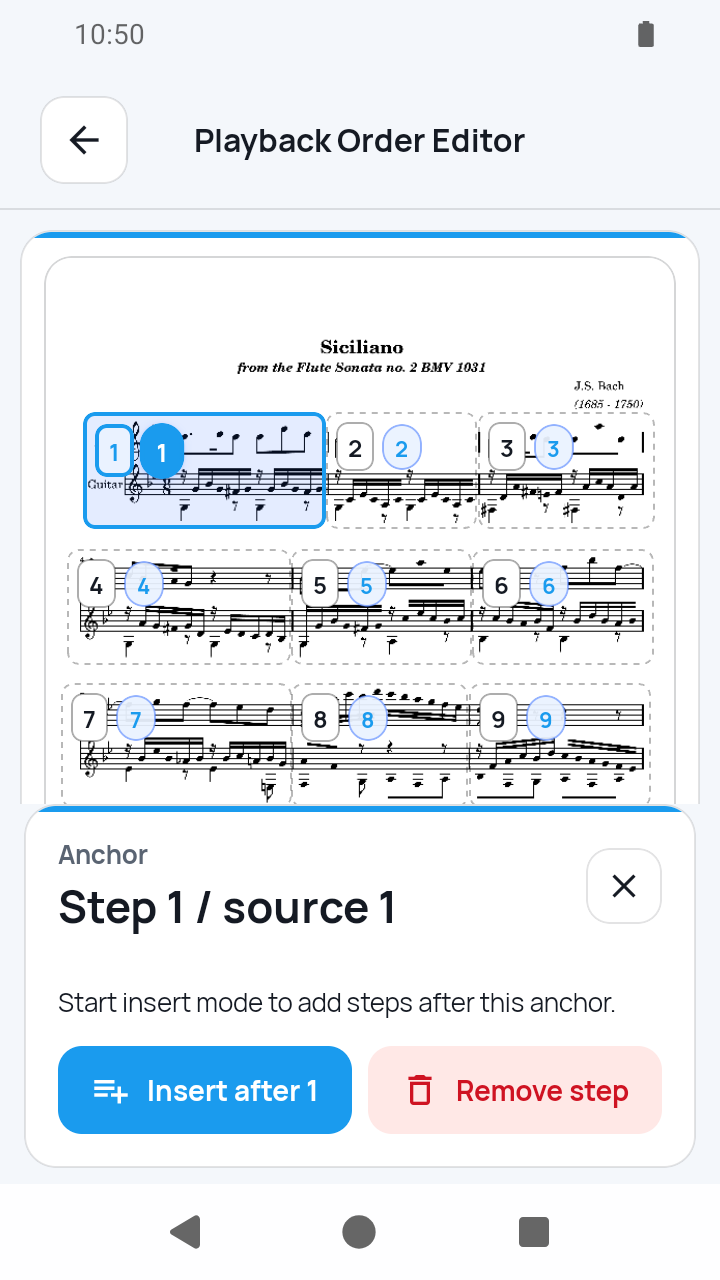
From My Scores, open the score actions, tap Edit, and choose Playback Order Editor in Measure Edit. Select the route step that should come before the new passage, tap the numbered Insert after button—for example, Insert after 1—choose source measures on the current or another page, then confirm the pending steps. One source measure can appear at most four times in the route, and the final remaining step cannot be removed. Return to My Scores, open the score in a practice view, then set A and B to play that inclusive step range five times without changing the saved route.
 Open full-size image
How it works
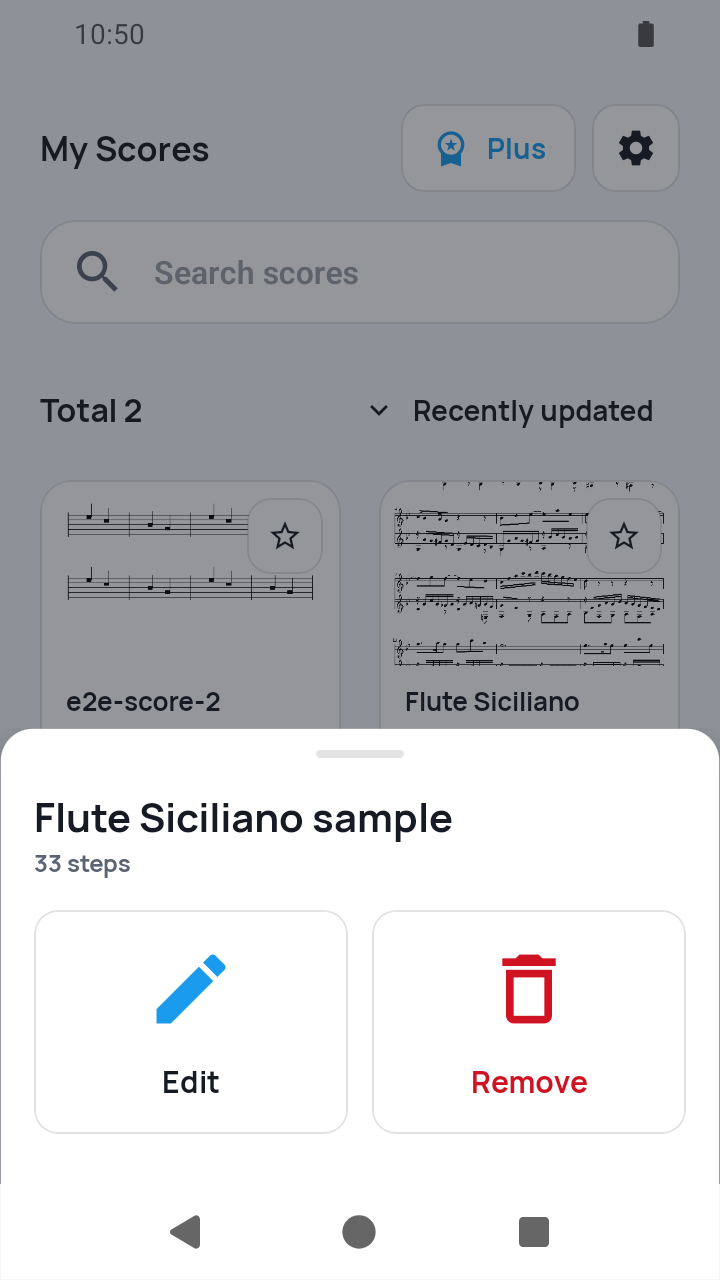
Open the score actions
In My Scores, open the actions for the target score and tap Edit.
 Open full-size image
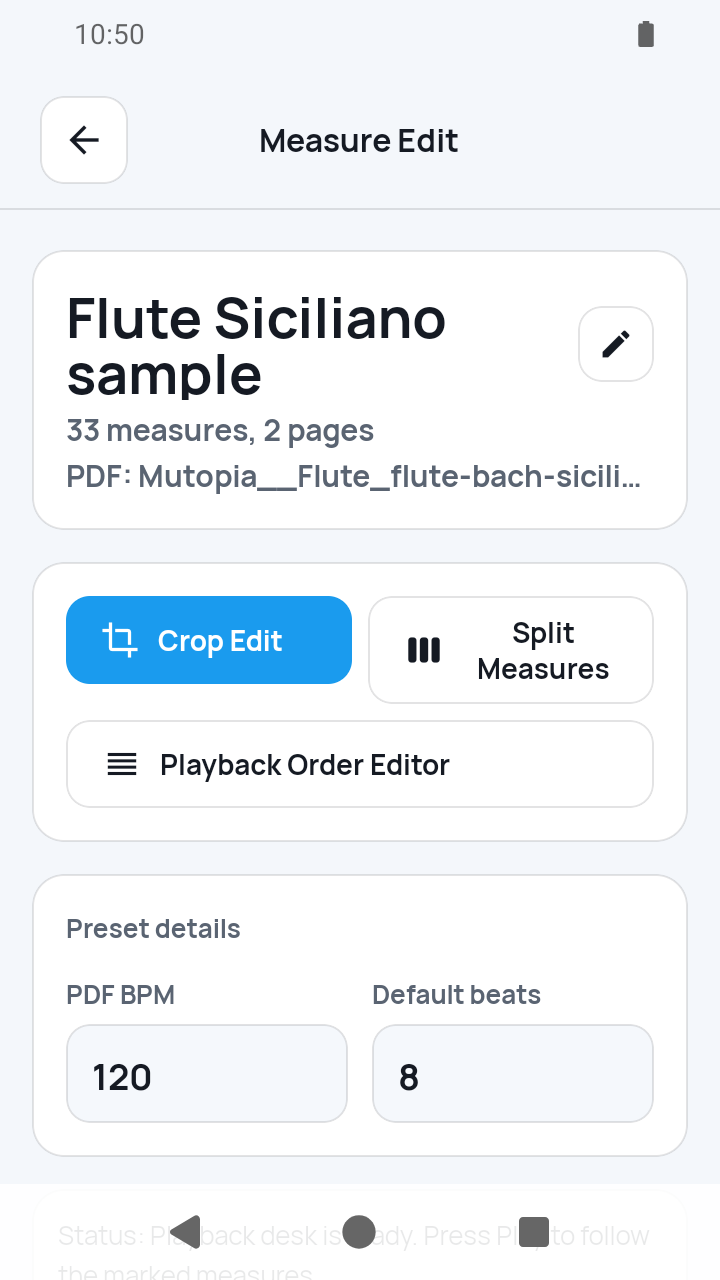
Choose Playback Order Editor
Measure Edit opens. Choose Playback Order Editor to open the preset's existing route.
 Open full-size image
Choose the insertion point
The editor opens with the preset's current numbered route. Select the play step that should remain immediately before the passage you want to add.
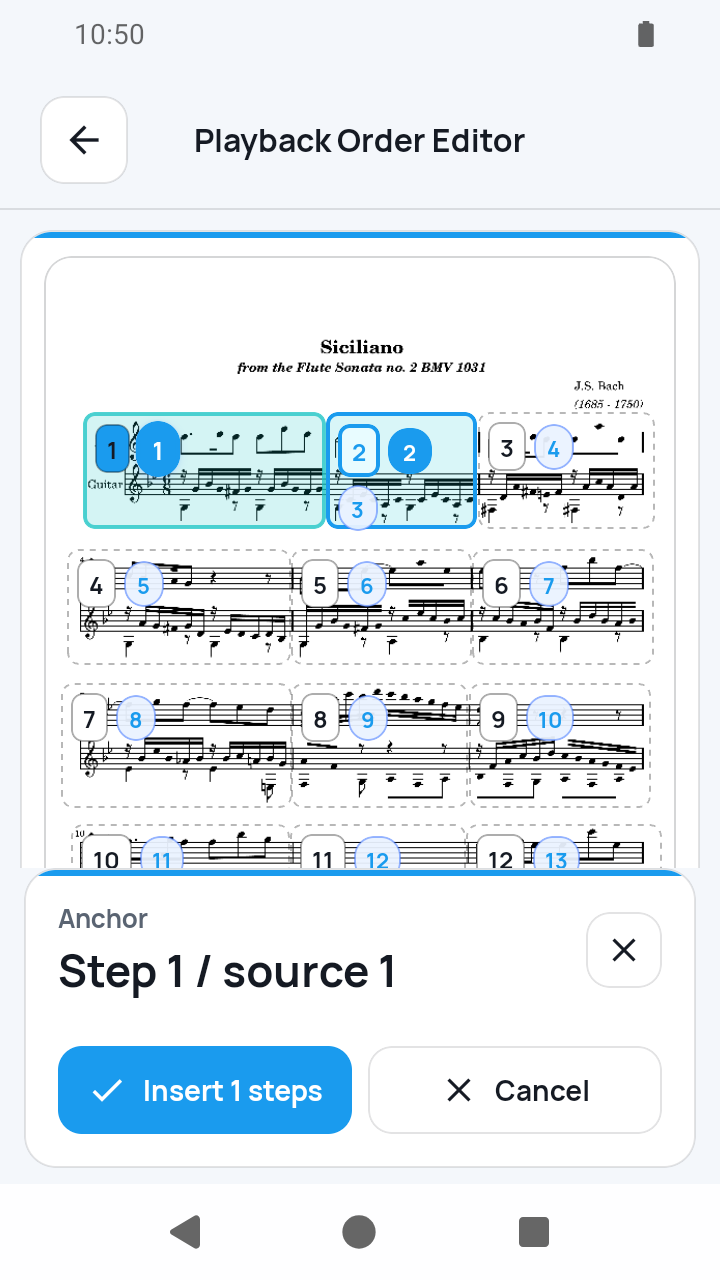
Build and confirm the inserted sequence
Tap the Insert after button that shows the selected step number to enter insertion mode. Choose source measures in order; you can change pages for a return. Check the pending steps, remove any mistaken picks, then confirm the insertion.
 Open full-size image
Handle route repeats and removals
Insert a source measure again when the written route repeats it. The same source can appear no more than four times in total. A selected route step can be removed, but at least one step must remain.
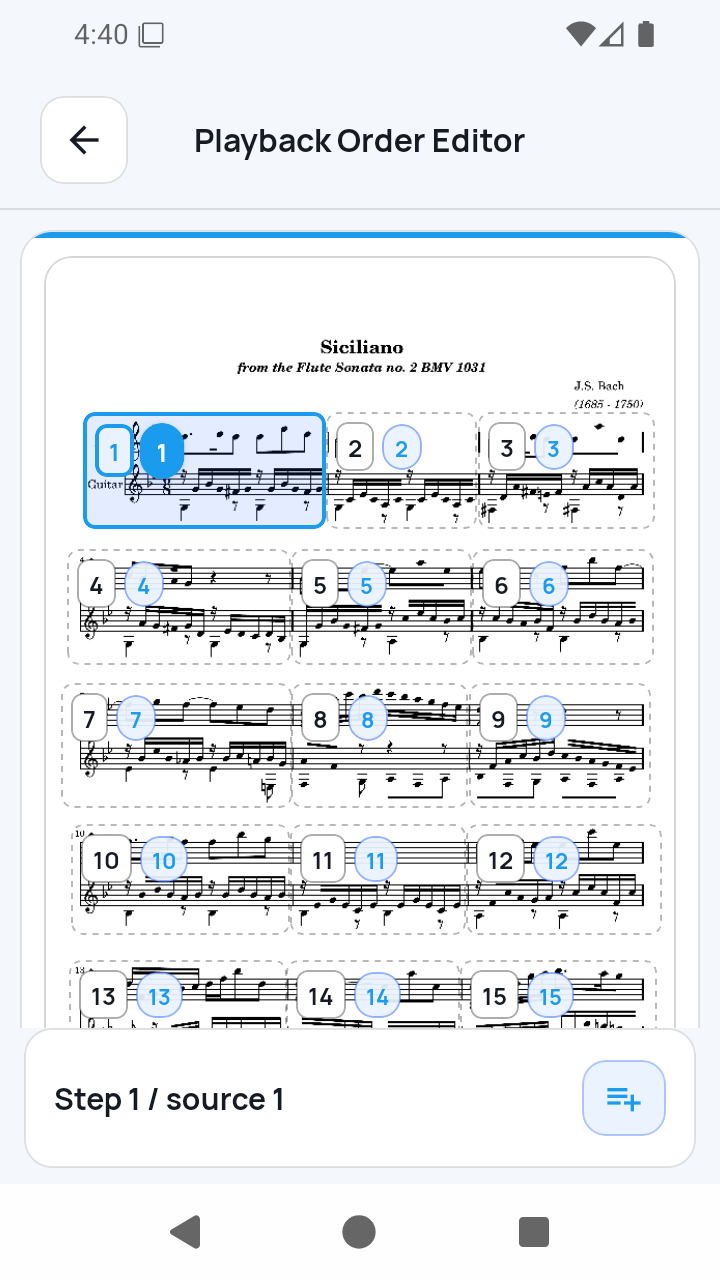 Open full-size image
Return to the score and choose a view
Go back from Playback Order Editor and Measure Edit to My Scores. Tap the score's play control and choose Measure view or Full page.
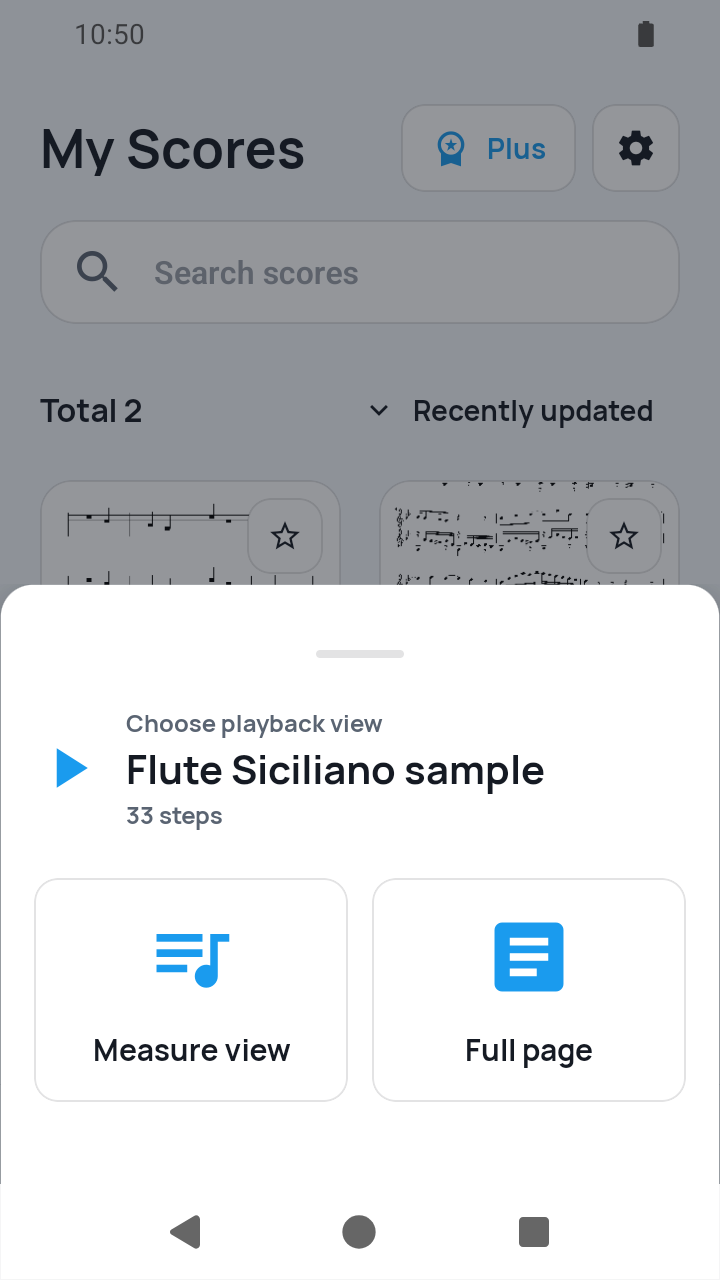 Open full-size image
Use A-B for one practice session
On the practice screen, mark the starting play step as A and the ending step as B. SheetCue plays the inclusive range five times and leaves the saved playback route unchanged.
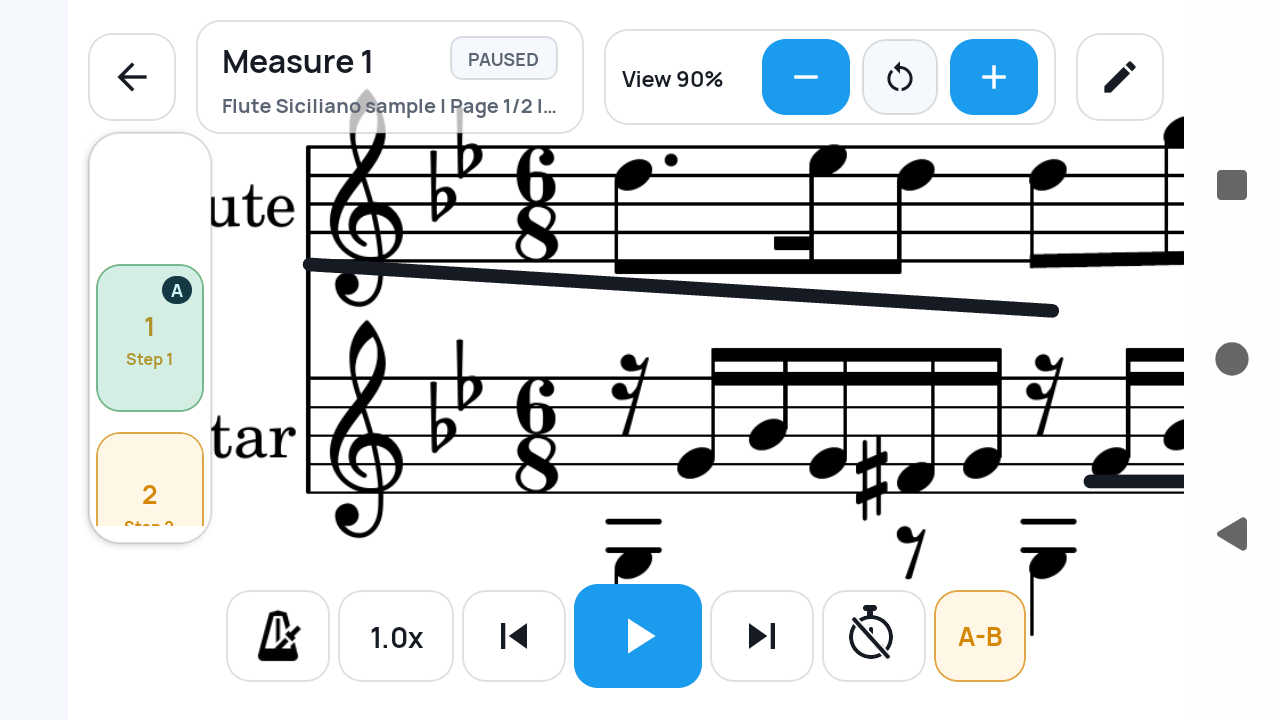 Open full-size image
What to know
The anchor decides where new steps go
Insertion happens after the selected route step. Selecting source measures alone does not reorder or replace the rest of the route.
A-B follows play steps, not source boxes
A and B refer to positions in the current playback route, so repeated appearances of the same source measure remain distinct steps.
Current limits
- Repeat signs, voltas, D.S., D.C., and Coda are not read automatically.
- A source measure can appear at most four times, and the route cannot be reduced below one step.
- A-B plays the selected range five times, advances by stored timing, and does not react to your instrument.
Related guides
Turn your score into a measure-by-measure practice flow.
SheetCue is free to download on iOS, iPadOS, and Android. Start with a 14-day SheetCue Plus free trial if eligible, as shown in the App Store or Google Play.